SeaMonkey/Firefox Themes by KaiRo
deutsche VersionAll those themes are or should soon be also available at Mozilla Add-Ons (AMO).
EarlyBlue
This theme reflects the early days of Mozilla (M4 to M8) and tries to restore the blue-styled look of like those early milestones in current SeaMonkey without cutting any functionality.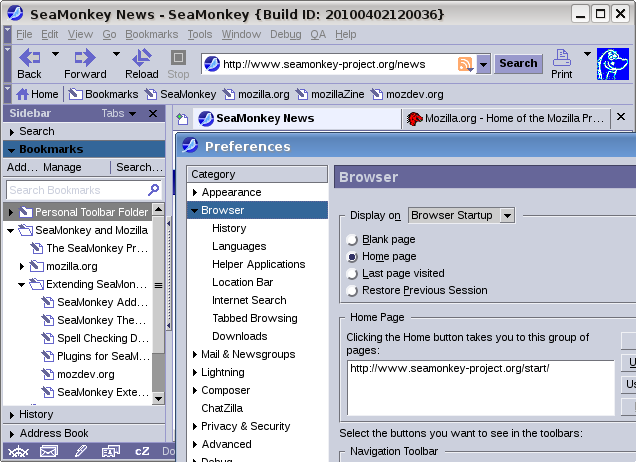
Installation Instructions are listed below, older versions are still available.
LCARStrek
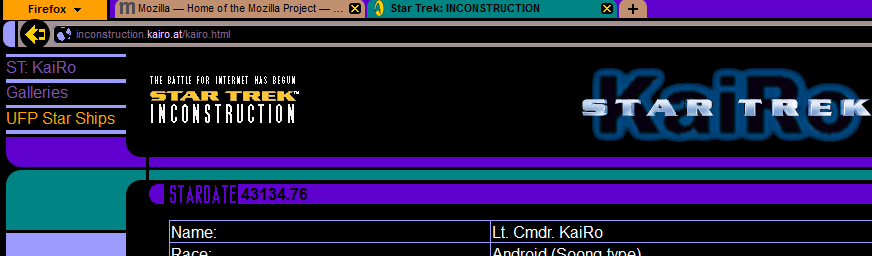
This one is a Star Trek theme, using the LCARS interface known of Federation Star Ships (heavily used in The Next Generation and Voyager series). It's got lot of rounded borders and hover (mouse-over) effects, be aware that it may look & feel quite unusual or strange for you, but keep in mind that this is an interface design which was not originally designed for the 21st but the 24th century...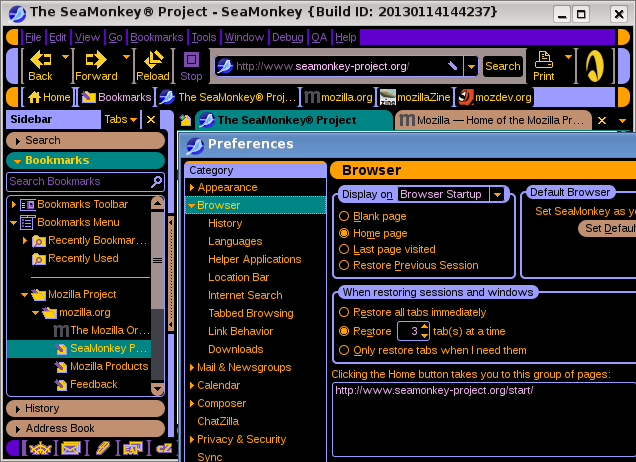
Installation Instructions are listed below, older versions are still available.
Be aware that skins may CRASH or block SeaMonkey versions other than the specified builds!
Installation Instructions:
- Start your SeaMonkey copy
- Click on the "Download & install" Link above. SeaMonkey installs the skin into your "chrome" Folder.
- Select "Tools" - "Add-on Manager" and click on "Themes" in the upper part of the Window to display theme management.
- Select the theme you want to use (e.g. "EarlyBlue") and click "Use Theme". After a restart of SeaMonkey, the new theme should appear to style your whole copy of SeaMonkey.
Alternatively, you can also use the menu item "View > Apply Theme" from a browser window instead of steps 3 and 4.
Get more SeaMonkey themes at Mozilla Add-Ons and MozDev.org!